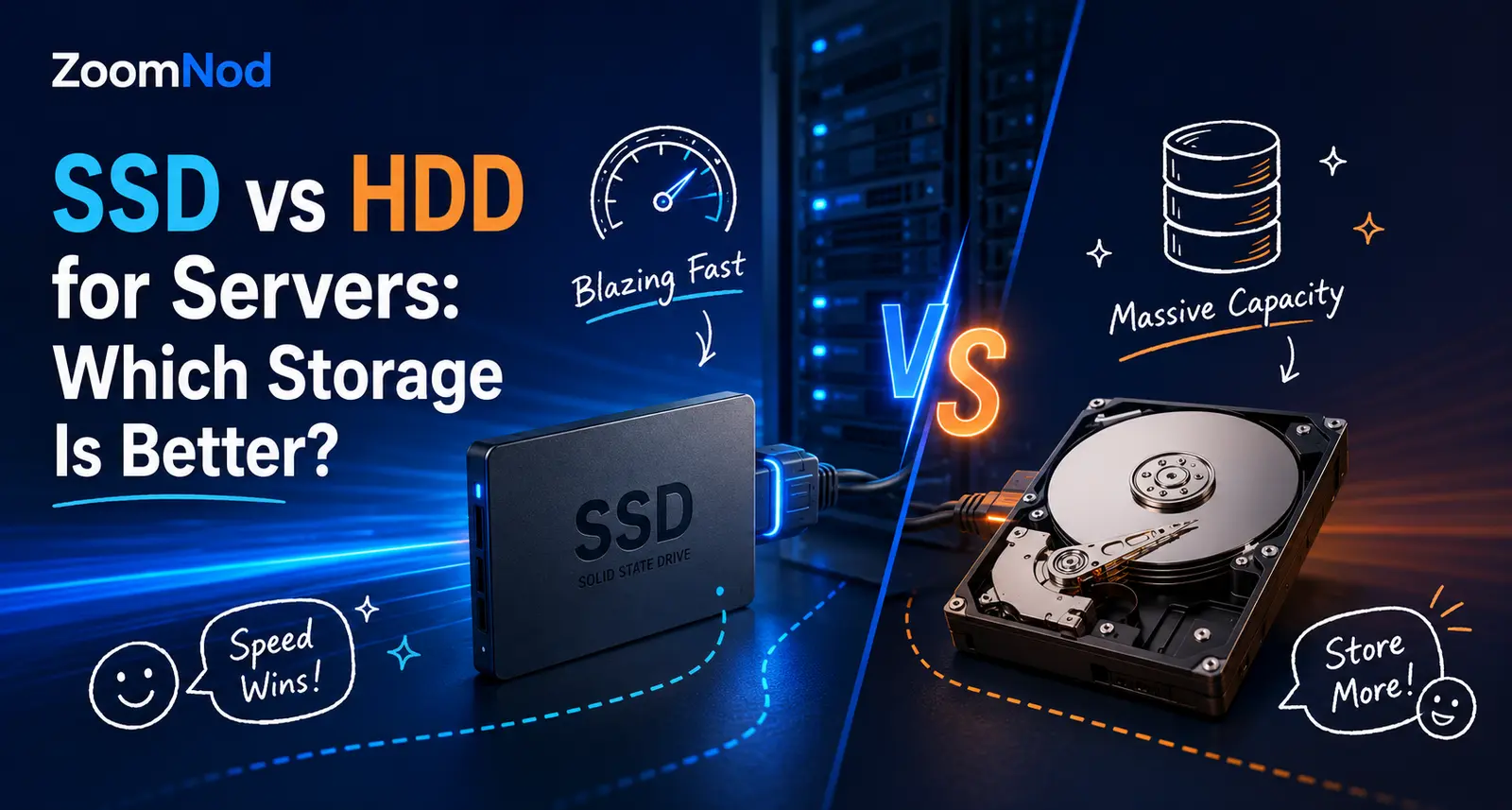
SSD vs HDD for Servers: Which Storage Is Better in 2026?
For most active server workloads, SSD storage delivers much lower latency, faster random access, higher input/output performance, lower power use, and no moving mechanical parts. HDD storage still fits cases where capacity per dollar matters more than speed, especially backups, archives, media libraries, surveillance data, and large sequential datasets.
Server storage does not always require choosing either SSD or HDD for every task. An effective architecture may use NVMe SSDs for the operating system, databases, virtual machines, caches, and active application data, while using high-capacity HDDs for backups, archives, logs, or infrequently accessed files. The right answer depends on workload behavior, required capacity, write endurance, redundancy, recovery objectives, and budget.
Quick answer: Choose NVMe or enterprise SSDs for databases, websites, virtual machines, e-commerce, game servers, application hosting, and latency-sensitive services. Choose HDDs for large backup repositories, archives, media storage, and workloads dominated by sequential transfers. Use a hybrid storage design when you need both fast active data and economical bulk capacity. Neither SSD nor HDD replaces RAID, backups, replication, or a tested recovery plan.
SSD vs HDD for Servers at a Glance
| Factor | SSD | HDD | Better choice |
|---|---|---|---|
| Random read/write latency | Very low because data is accessed electronically | Higher because heads must move and platters rotate | SSD |
| IOPS | High, especially with NVMe | Low compared with flash storage | SSD |
| Sequential throughput | High to very high | Good for large continuous transfers | SSD for speed; HDD for economical capacity |
| Capacity per dollar | Higher cost per terabyte in many server configurations | Usually lower cost per terabyte | HDD |
| Power and heat | Generally lower because there are no spinning platters | Generally higher, especially in large drive arrays | SSD |
| Noise and vibration | No mechanical seek noise | Mechanical noise and vibration | SSD |
| Write endurance | Finite flash endurance; enterprise ratings must match workload | Not rated by flash program/erase cycles, but mechanical wear and workload limits still matter | Depends on drive class and workload |
| Bulk archives and backups | Fast but may be unnecessarily expensive | Large capacities at a lower cost | HDD |
| Databases and virtual machines | Excellent for random and concurrent I/O | Often becomes the bottleneck | SSD |
| Failure behavior | Electronic and flash-related failures; can fail with limited warning | Mechanical, magnetic, and electronic failures; may show progressive symptoms | Neither—design redundancy and backups |
What Is an HDD?
A hard disk drive stores data magnetically on rotating platters. An actuator moves read/write heads across the platter surfaces to access data. Because the process is mechanical, the drive must wait for the correct track and sector to move into position before reading or writing.
HDDs remain widely used because they provide large capacities at a relatively low cost per terabyte. Enterprise and data-center HDDs are designed for continuous operation, vibration control, workload limits, error recovery, and array use. They suit servers that must retain many terabytes of data without requiring low-latency access to every file.
Where HDDs Still Make Sense
- Backup repositories with long retention periods
- Cold or infrequently accessed archives
- Large video, audio, image, or surveillance libraries
- Object-storage and distributed-storage nodes designed around capacity
- Log retention where search speed is not critical
- Large sequential datasets
- Secondary copies of data stored separately from production
HDDs can also support active file servers and media platforms, but performance must be planned around spindle count, RAID layout, caching, queue depth, file size, and concurrent users. A single large HDD may provide substantial capacity yet struggle under many small random requests.
What Is an SSD?
A solid-state drive stores data in nonvolatile flash memory and has no moving read/write heads or spinning platters. It can access data electronically, which sharply reduces seek latency and improves random read and write performance.
SSDs are available in consumer, data-center, and enterprise classes. Server buyers should consider more than capacity and peak sequential speed. Controller quality, flash type, power-loss protection, write endurance, sustained performance, firmware behavior, error correction, thermal design, and warranty workload limits all matter.
Where SSDs Are Usually the Better Choice
- Operating-system and application volumes
- Relational and NoSQL databases
- Virtual machines and container platforms
- Busy websites and e-commerce stores
- Game servers and real-time applications
- Email databases and search indexes
- Build systems, package repositories, and development environments
- Analytics workloads with frequent random reads
- High-traffic file synchronization and collaboration platforms
SSD Is a Storage Device; NVMe Is a Protocol
“SSD” describes a solid-state storage device. “NVMe” describes a protocol designed for nonvolatile memory and commonly used over PCI Express. An NVMe drive is normally an SSD, but not every SSD uses NVMe. SATA SSDs use the SATA interface and AHCI command model, while NVMe SSDs communicate through PCIe and are designed for greater parallelism and lower protocol overhead.
This distinction matters when comparing server plans. A provider may advertise “SSD storage” without specifying whether it is SATA, SAS, or NVMe. Each can fit a particular design, but their latency, throughput, queue handling, redundancy options, hot-swap behavior, and cost differ.
SATA SSD
SATA SSDs are a common upgrade from HDDs. They offer much lower latency and stronger random performance through a mature interface. They suit web hosting, smaller databases, application servers, boot drives, and workloads that do not need the highest possible storage throughput.
SAS SSD
SAS SSDs are used in enterprise systems that require dual-port connectivity, mature storage-controller integration, and features designed for server arrays. They can cost more than SATA models but may fit infrastructure built around enterprise SAS backplanes and high-availability storage designs.
NVMe SSD
NVMe SSDs use PCIe connectivity and can support much higher parallel I/O and lower latency than SATA storage. They often fit databases, virtualization, analytics, high-traffic applications, and storage-intensive services. However, actual performance depends on the drive, PCIe generation and lane allocation, CPU topology, cooling, firmware, file system, RAID method, and workload.
SSD vs HDD Performance
Random I/O
Random I/O occurs when an application accesses many small blocks scattered across a storage device. Databases, virtual machines, content-management systems, mail servers, and multi-user applications often create this pattern. SSDs handle random access far more efficiently because they do not need to move a mechanical head to each location.
Lower random-access latency can make a server much more responsive even when sequential transfer figures show a smaller improvement. Faster page loads, database queries, package operations, boot times, and VM responsiveness often come from lower latency rather than only higher headline bandwidth.
Sequential I/O
Sequential I/O moves large blocks of data in order. Backups, media transfers, large exports, and archive operations commonly use this pattern. HDD arrays can deliver useful sequential throughput when data is spread across several drives, making them cost-effective for capacity-heavy workloads.
SSDs are still faster in many sequential workloads, particularly NVMe devices, but the business question is whether the extra speed produces enough value to justify the higher cost. A backup target limited by a 1 Gbps network connection may not benefit from an extremely fast local NVMe array.
Concurrency and Queue Depth
Servers rarely serve only one storage request at a time. Databases, VMs, websites, and multi-user file systems generate concurrent operations. SSDs, especially NVMe SSDs, are designed to process many requests efficiently. HDD performance can degrade rapidly when concurrent random requests force constant head movement.
Aggregate IOPS, latency under load, and quality of service therefore matter more than a single peak throughput number. Ask for benchmarks that reflect the intended workload rather than relying only on advertised maximum read speed.
SSD vs HDD Reliability: Which Lasts Longer?
Neither technology is immune to failure. HDDs have moving parts that can wear or be affected by vibration, shock, head problems, spindle issues, media defects, and controller failures. SSDs avoid mechanical wear but can fail because of controller, firmware, capacitor, NAND, power, thermal, or electronic problems.
Neither all SSDs nor all HDDs are inherently more reliable for long-term storage. Drive class, workload, temperature, power quality, firmware, manufacturing variation, age, array design, monitoring, and replacement procedures influence reliability.
SSD Endurance: TBW and DWPD
Flash memory supports a finite number of program and erase cycles. Vendors express endurance through metrics such as terabytes written (TBW) or drive writes per day (DWPD) over a warranty period. A read-heavy web server may operate well on a modest-endurance SSD, while a logging, database, cache, or analytics workload may require a higher-endurance enterprise drive.
Do not choose an SSD solely because it is NVMe. A fast consumer NVMe drive may lack the endurance, sustained write behavior, power-loss protection, or thermal design expected in a 24/7 production server. Match the drive’s endurance and feature set to the actual daily writes and service requirements.
HDD Workload Ratings and Vibration
Enterprise HDDs may include workload ratings, rotational-vibration sensors, error-recovery behavior, and firmware intended for arrays. Desktop drives can behave poorly in multi-drive enclosures or continuous workloads. Use drives approved for the intended server or storage system.
Power-Loss Protection
Enterprise SSDs may include capacitors that help complete in-flight writes or preserve mapping data during unexpected power loss. This can be important for databases and transactional systems. A UPS protects the server from some power events, but drive-level power-loss protection still addresses failures inside the system or storage path.
Monitor Both Technologies
Monitor SMART data, media errors, wear indicators, reallocated sectors, unsafe shutdowns, temperature, latency, and array health. Replace drives proactively when monitoring, vendor guidance, or workload history indicates increasing risk. Use the Linux system monitoring guide to build a broader view of disk utilization, I/O wait, latency, and server health.
SSD vs HDD Cost and Total Cost of Ownership
HDDs generally provide more capacity for the same purchase or monthly rental price. This remains their main advantage. A server that needs tens or hundreds of terabytes for archives may be financially impractical with all-flash storage.
Cost per terabyte is only one part of the calculation. SSDs can reduce the number of drives, servers, rack units, power, cooling, and administrator effort required to reach a performance target. A database that needs many HDDs to produce enough IOPS may run on fewer SSDs. In that situation, the SSD design can be more cost-effective even if each terabyte costs more.
Compare Cost per Capacity and Cost per Performance
- Cost per terabyte: Usually favors HDD.
- Cost per IOPS: Usually favors SSD.
- Cost per low-latency transaction: Usually favors SSD.
- Cost for cold retention: Usually favors HDD.
- Cost for dense high-performance virtualization: Often favors SSD.
- Cost for large sequential backup targets: Often favors HDD.
Do Not Ignore Downtime and User Experience
Slow storage can increase page-response time, extend maintenance windows, delay backups, lengthen recovery, and reduce the number of users a server can support. Those costs may be larger than the storage-price difference. Buying premium NVMe for rarely accessed archives wastes money without improving the outcome.
Power, Heat, Noise, and Data-Center Density
SSDs generally use less power and produce less heat than performance-equivalent HDD configurations because they have no motors or moving heads. In a large array, lower power and cooling demand can improve infrastructure density and operating cost.
HDDs also introduce vibration and acoustic noise. These factors are not usually a problem for a correctly designed data center, but they affect chassis, drive selection, and array density. SSDs make silent storage possible, although server fans and power supplies still generate substantial noise.
When comparing a hosted dedicated server, power and cooling are normally included in the monthly fee. They still matter indirectly because providers price hardware and facilities around energy, density, and cooling requirements. The guide to data centers versus server rooms explains why environmental design matters for server reliability.
SSD vs HDD for Common Server Workloads
| Workload | Recommended storage | Reason |
|---|---|---|
| Operating system | SSD | Faster booting, updates, package operations, logs, and administration |
| High-traffic website | SSD or NVMe | Low latency for files, caches, sessions, and database activity |
| E-commerce | Enterprise SSD or NVMe with redundancy | Consistent transactional and database performance |
| Database server | Enterprise NVMe or SSD | Strong random I/O, low latency, and concurrency |
| Virtualization host | Enterprise NVMe or SSD | Many VMs create concurrent random I/O |
| Game server | SSD or NVMe | Faster world loading, saves, mods, updates, and multi-instance operation |
| File server | SSD, HDD, or hybrid | Depends on file size, active users, capacity, and access frequency |
| Backup repository | HDD or hybrid | High capacity and lower cost per terabyte |
| Video archive | HDD | Large sequential files and high retention capacity |
| Active video editing or transcoding | NVMe or SSD | High throughput and responsive access to working files |
| Nextcloud or private cloud | SSD for database/cache; HDD or SSD for user files | Separates latency-sensitive metadata from bulk capacity |
| Logs and analytics | SSD for active search; HDD for retention | Fast ingestion and queries with economical long-term storage |
Web Hosting and WordPress
Most modern web hosting benefits from SSD storage. WordPress, e-commerce, and dynamic websites generate database queries, cache reads, image access, plugin operations, and log writes. NVMe can help busy sites and multi-tenant hosting, but application caching, database tuning, CPU, and network performance still matter.
Databases
Databases are a clear SSD use case. Low latency improves transaction response, random reads, index access, temporary files, checkpoints, and recovery. Enterprise features and write endurance matter more than a simple “NVMe” label. Critical databases should use redundancy, tested backups, replication where required, and monitoring.
Virtual Machines and Containers
A virtualization host combines the I/O of many guest systems. HDDs can become a bottleneck when several VMs boot, update, swap, or query databases at once. Enterprise SSD or NVMe storage usually enables greater VM density and more predictable latency. CPU and memory sizing still matter, so review the guide to nested virtualization on a VPS for related platform considerations.
Minecraft and Game Servers
Game servers use storage for world data, player files, plugins, mods, logs, and backups. SSD storage reduces loading delays and helps during frequent save operations. Modded or multi-instance environments can create more storage activity than a simple server. The guides to hosting a modded Minecraft server and Minecraft server costs help connect storage choices with RAM, CPU, player count, and hosting budget.
Private Cloud and File Synchronization
Platforms such as Nextcloud use a database, cache, application files, previews, and user data. A cost-effective design may place the database, Redis cache, and application on SSD while storing large user files on HDD or object storage. Review the guides to installing Nextcloud on a VPS and Nextcloud versus ownCloud before planning capacity. The best Nextcloud hosting providers comparison shows how current managed services and VPS options handle storage, backups, and server control.
Backups and Archives
HDDs remain useful for backup capacity, but the backup system must meet the required backup and restore windows. A slow repository may complete nightly backups but fail to restore a large production system quickly enough. Consider a hybrid design with SSD staging, HDD retention, and an independent off-site copy.
RAID Does Not Replace Backup
RAID can improve availability, performance, or both by combining drives. It can protect against certain drive failures, depending on the RAID level and array state. It does not protect against accidental deletion, malware, ransomware, application corruption, administrator mistakes, theft, fire, provider failure, or a corrupted array.
Use RAID according to workload and recovery requirements, then maintain separate backups. The guide to backing up and restoring data on a VPS covers backup frequency, retention, off-site copies, and restore testing that also apply to dedicated servers.
Important RAID Considerations
- Mirroring does not protect against deletion or corruption replicated to both drives.
- Parity arrays can have slower writes and longer, riskier rebuilds at large capacities.
- HDD rebuilds may take a long time and place sustained load on remaining drives.
- SSD arrays need endurance planning, power-loss protection, and compatible controllers.
- Hardware RAID controllers may require battery or flash-backed write cache.
- Software RAID can provide flexibility but requires operating-system and recovery knowledge.
- Hot spares reduce replacement delay but do not replace monitoring and physical service.
When a Hybrid SSD and HDD Server Is Best
A hybrid server separates active data from bulk data. This often reduces costs for storage-heavy systems.
Example Hybrid Layout
- Mirrored SSD or NVMe pair: Operating system, application, database, cache, and active project files
- HDD array: User uploads, media library, backup history, exports, and archives
- Independent remote backup: Encrypted copy in another system or location
This design suits media platforms, private clouds, agencies, analytics, file servers, and applications with a small active dataset and a much larger inactive dataset. Data-placement policies should be documented so that high-demand files do not unexpectedly remain on slow storage.
How to Choose Between SSD and HDD for a Server
1. Measure the Workload
Collect current capacity, daily growth, read/write ratio, random versus sequential I/O, average and peak IOPS, latency, queue depth, throughput, and backup windows. For a new workload, estimate by application type and run a realistic test before production.
2. Set Capacity and Growth Targets
Plan usable capacity after RAID, formatting, snapshots, reserved space, and retention. Leave room for growth and avoid running flash storage permanently near full capacity, where garbage collection and write amplification can affect performance.
3. Define the Latency Requirement
Databases, virtual machines, e-commerce, and interactive applications usually need SSD. Archives and backups may accept HDD latency. Define the slowest acceptable response instead of buying the highest benchmark available.
4. Estimate Daily Writes
Measure or estimate how much data is written each day, including database logs, temporary files, caching, VM activity, backups, and application logs. Select SSD endurance with sufficient margin for the full service life.
5. Plan Redundancy and Recovery
Choose RAID, replication, snapshots, and backups based on recovery-point and recovery-time objectives. A fast drive does not reduce the need for an off-server copy.
6. Check the Complete Server Architecture
Storage performance can be limited by PCIe lanes, RAID controllers, CPU topology, memory, file system, virtualization layer, network port, or remote clients. A 10 Gbps network can expose storage limits that were hidden behind a 1 Gbps connection, while a slow network can prevent clients from using the full speed of NVMe.
7. Compare Enterprise Features
Check hot-swap support, dual-port access, power-loss protection, endurance, error correction, firmware support, monitoring, spare availability, warranty, and provider replacement procedures. Server-grade features can matter more than peak benchmark numbers.
SSD vs HDD Server Buying Checklist
- Usable capacity required today and after expected growth
- Random versus sequential workload identified
- Latency, IOPS, and throughput targets documented
- Read-heavy or write-heavy behavior measured
- SSD TBW or DWPD matched to daily writes
- Enterprise or data-center drive class confirmed
- SATA, SAS, or NVMe interface specified
- PCIe generation and lane allocation checked for NVMe
- RAID level and rebuild process documented
- Power-loss protection requirements reviewed
- Hot-swap and spare-drive availability confirmed
- Monitoring and alerting configured
- Backup, off-site copy, and restore tests scheduled
- Network speed matched to storage and user requirements
- Total cost compared by capacity and required performance
Common Storage Mistakes
- Choosing by capacity alone: A large drive can still be too slow for the workload.
- Choosing by peak speed alone: Sustained latency, endurance, and quality of service may matter more.
- Assuming every SSD is enterprise-ready: Consumer drives may lack endurance and power-loss protection.
- Assuming HDDs are obsolete: They remain cost-effective for large, less-active datasets.
- Using one drive without redundancy: A single device failure can stop the service.
- Confusing RAID with backup: The same deletion or corruption can affect the whole array.
- Ignoring restore speed: A low-cost backup target may not meet recovery-time requirements.
- Ignoring heat and throttling: NVMe performance can decline if cooling is inadequate.
- Mixing mismatched drives carelessly: Different endurance, firmware, sector formats, and performance can complicate arrays.
- Failing to monitor wear and errors: Replacement should be planned before a warning becomes an outage.
Frequently Asked Questions
Is SSD better than HDD for a server?
SSD is better for most active workloads because it provides lower latency and higher random performance. HDD is better when large capacity at a lower cost is more important than access speed.
Should a web server use SSD or HDD?
Use SSD for the operating system, website files, cache, and database. Modern dynamic websites and e-commerce stores benefit from the lower latency. HDD may be used for backups or large media archives.
Is NVMe always better than SATA SSD?
NVMe provides a faster, more parallel interface, but it is not always necessary. A SATA SSD can be sufficient for smaller websites, boot volumes, and moderate applications. Endurance, power-loss protection, sustained behavior, and redundancy may matter more than interface speed.
Are SSDs reliable enough for servers?
Yes, when the drive class, endurance, firmware, power-loss protection, cooling, and redundancy match the workload. Critical data still requires backups and monitoring because SSDs can fail.
Are HDDs good for server backups?
Yes. HDDs provide economical high-capacity storage and work well for backup repositories. Confirm that backup and restore throughput meet your recovery objectives, and keep another copy in a separate system or location.
How much faster is an SSD than an HDD?
The difference depends on the operation. SSDs are dramatically faster for random access and latency-sensitive workloads. Sequential differences vary by drive, array, interface, and workload. Test using the access pattern your application will create.
Does SSD improve server response time?
It often does when storage is the bottleneck, especially for databases, virtual machines, websites, search indexes, and applications with many small files. It will not fix slow code, insufficient CPU or RAM, or poor network routing.
Can I use SSD and HDD together in one server?
Yes. A hybrid design can place the operating system and active data on SSD while using HDD for archives, media, and backups. Keep data placement and recovery procedures clear.
Does RAID make SSD or HDD data safe?
RAID can protect against some drive failures and improve availability, but it does not protect against deletion, corruption, ransomware, application errors, or site loss. Maintain separate backups and test restoration.
Which storage is best for a dedicated server?
NVMe or enterprise SSD usually fits active applications, databases, virtualization, and busy websites. HDD suits economical bulk storage. A mixed configuration works well for servers that need both performance and high capacity.
Final Verdict
SSD storage suits most modern production servers because latency and random I/O affect databases, websites, virtual machines, applications, and user experience. NVMe provides the highest performance when the server architecture and workload can use it. SATA SSD remains suitable for moderate workloads and boot volumes.
HDD storage remains economical for large backup sets, archives, media libraries, and capacity-heavy sequential workloads. It should not be dismissed simply because SSD is faster. The right design uses the least expensive technology that meets performance, resilience, and recovery requirements.
For many dedicated servers, a hybrid layout works well: mirrored enterprise SSD or NVMe for the operating system and active data, high-capacity HDD for bulk retention, and an independent off-site backup. Compare the full server—including CPU, RAM, storage interfaces, network, redundancy, monitoring, and support—rather than choosing a plan from the drive label alone. The guide to dedicated server hosting explains how these components fit into the wider infrastructure decision.
For server storage, when does HDD still make more sense than SSD or NVMe?
SSD storage is usually better for databases, virtual machines, active websites, and random I/O, while HDD remains useful for large archives, backups, and capacity-focused workloads.
A server storage decision should compare latency, IOPS, endurance, capacity, RAID design, replacement risk, power, and cost per usable terabyte.
The SSD vs HDD decision for a server should probably be based on workload rather than capacity alone. Databases, virtual machines, busy websites, search indexes, and mail servers usually benefit from SSD latency and random IOPS, while large archives and backup repositories may still justify HDD storage. I would compare SATA SSD, NVMe SSD, enterprise endurance ratings, usable capacity after RAID, drive replacement time, and the cost of maintaining a separate backup tier. A hybrid design with NVMe for active data and HDD or object storage for backups may offer a better balance than choosing one drive type for everything.
HDD storage can still be practical for large backup sets, media archives, and infrequently accessed data. The important point is not to place a latency-sensitive database on slow disks simply because the capacity price is attractive.
Not every SSD offers the same server performance or endurance. Interface, controller quality, sustained write speed, power-loss protection, and write endurance can matter more than the SSD label alone.