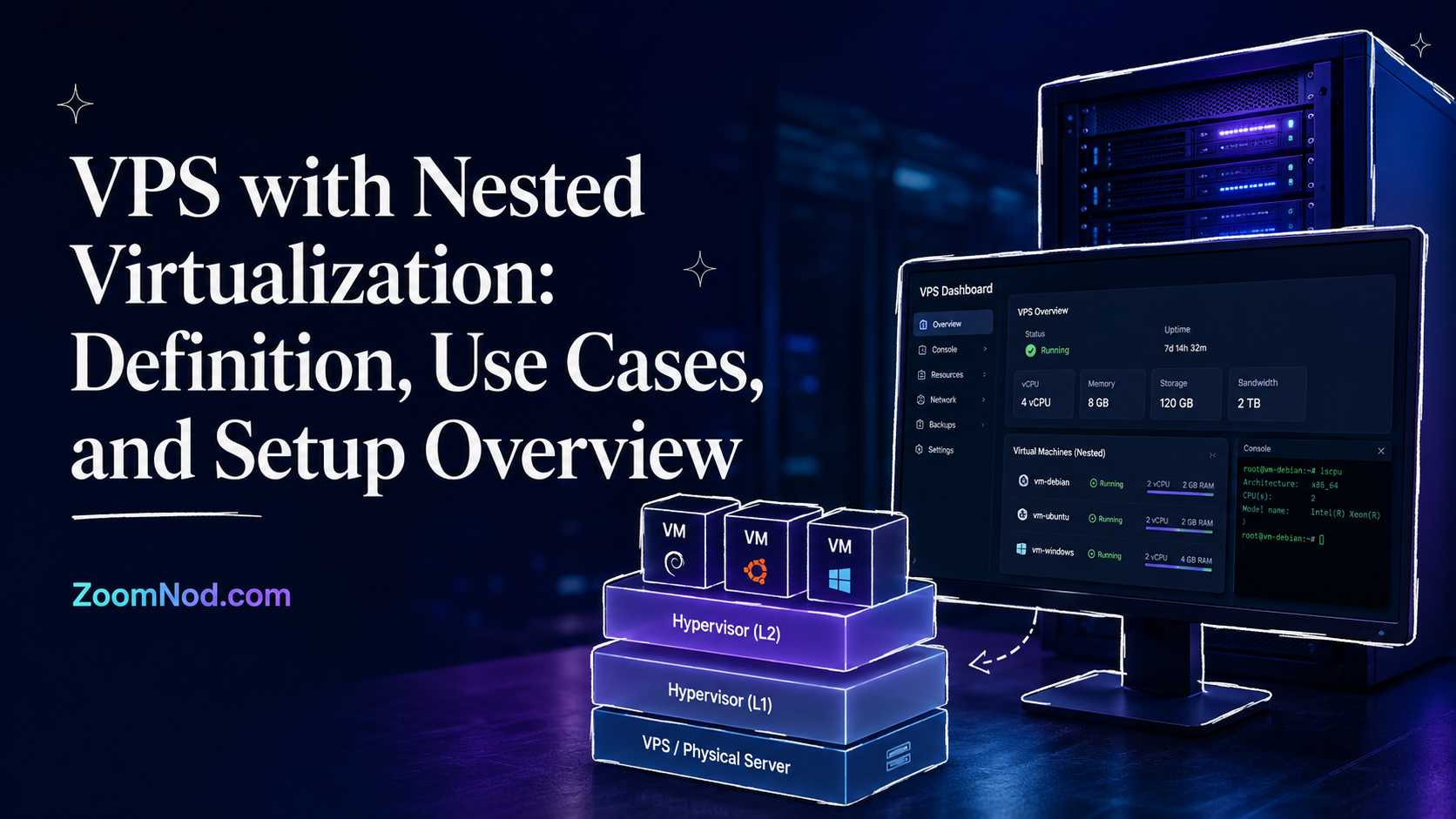
A VPS with nested virtualization is a virtual private server that can run another virtualization layer inside itself. It lets you create virtual machines inside a VPS without needing a physical server. This supports developers, system administrators, cybersecurity labs, Android emulator workloads, software testing, training environments, and anyone who needs a small virtual lab without buying dedicated hardware.
Most normal VPS plans do not expose the CPU virtualization features needed for nested VMs. They can run websites, databases, control panels, game servers, trading platforms, and applications, but they cannot always run a hypervisor inside the VPS. A nested virtualization VPS is different because the provider allows virtualization extensions such as Intel VT-x or AMD-V to be passed through to the guest server.
The article covers what nested virtualization means, how it works, where it is useful, when it is not the right choice, and what to check before buying a compatible VPS. It also examines KVM and Hyper-V nested virtualization, Android emulator use cases, performance limits, security considerations, and the main implementation steps.
If you are still comparing general hosting options, you may also want to review best VPS hosting, best server CPU, and best server location before choosing a plan for virtualization-heavy workloads.
What Is Nested Virtualization?
Nested virtualization is the ability to run a virtual machine inside another virtual machine. Instead of running a hypervisor directly on a physical server, you run a hypervisor inside a VPS or cloud VM, then create additional guest VMs inside that VPS.
A standard virtualization stack usually looks like this:
- Physical server: The real hardware with CPU, RAM, storage, and network interfaces.
- Hypervisor: Software such as KVM, Hyper-V, VMware ESXi, or Xen that creates and manages virtual machines.
- Virtual machines: Guest operating systems running on top of the hypervisor.
A nested virtualization stack adds another layer:
- L0 host: The physical server controlled by the hosting provider.
- L1 VM: Your VPS, which acts like a virtualized server.
- L1 hypervisor: A hypervisor you install inside your VPS, such as KVM, Hyper-V, VirtualBox, or Proxmox.
- L2 VM: A nested virtual machine running inside your VPS.
For example, your hosting provider may run KVM on bare metal. You receive a Linux VPS. If nested virtualization is enabled, you can install KVM inside that VPS and create smaller test VMs inside it. The inner VMs are called nested guests.
Official KVM documentation describes a nested guest as a guest running inside another guest, such as a KVM guest that itself runs another KVM guest. Microsoft also documents nested virtualization for Hyper-V, where Hyper-V can run inside a virtual machine instead of directly on physical hardware.
What Is a VPS with Nested Virtualization?
A VPS with nested virtualization is a VPS plan where the provider exposes CPU virtualization extensions to the VPS. This allows the VPS to behave like a small virtualization host.
Without nested virtualization, a VPS can usually run containers, websites, databases, scripts, control panels, and normal services. But it may fail when you try to start another full virtual machine, Android emulator, or hypervisor. You may see errors such as virtualization not available, KVM not supported, VT-x disabled, AMD-V unavailable, or Hyper-V cannot be installed.
With nested virtualization, the VPS can run workloads such as:
- KVM virtual machines inside a Linux VPS
- Hyper-V virtual machines inside a Windows VPS
- Proxmox test labs inside a VPS
- Android emulators that need hardware acceleration
- Docker Desktop on Windows Server in some scenarios
- Cybersecurity labs with isolated guest systems
- Training environments for virtualization and networking
- Testing clusters before moving to production
Most projects do not require this type of VPS. A normal VPS is usually enough for WordPress, databases, web applications, and control panels. Nested virtualization becomes relevant when the server must run additional virtual machines.
Why Nested Virtualization Matters in 2026
Nested virtualization matters in 2026 as more teams move development, automation, mobile testing, and infrastructure labs online. Developers may need Android emulators for app testing. System administrators may practice KVM, Hyper-V, or Proxmox. Security teams need isolated machines for controlled testing. Agencies may need temporary demo environments, while students may need virtual labs without buying expensive hardware.
A nested virtualization VPS provides a remote lab accessible from anywhere without relying entirely on a local workstation. You can rent enough CPU, RAM, NVMe storage, and bandwidth for several nested test environments.
This can be useful when:
- Your local PC is not powerful enough for virtual labs.
- You need a server that stays online 24/7.
- You want to test Linux distributions, Windows Server, or networking labs remotely.
- You need Android emulator acceleration on a remote machine.
- You want a repeatable environment for training or demos.
- You need to test automation scripts across multiple operating systems.
Nested virtualization adds overhead, so performance is usually lower than with VMs running directly on bare metal. With the right configuration, it remains a practical way to create flexible lab environments inside a VPS.
How Does Nested Virtualization Work?
Nested virtualization works by exposing CPU virtualization instructions from the physical host to the virtual machine. On Intel processors, this usually means Intel VT-x. On AMD processors, this usually means AMD-V. These technologies allow a hypervisor to run virtual machines efficiently.
In a normal VPS, the hosting provider’s hypervisor may hide these virtualization extensions from the guest VPS. In that case, the VPS behaves like a virtual server but cannot act as a hypervisor itself.
In a nested virtualization VPS, the provider allows these features to pass through. Your VPS can then load virtualization modules, such as KVM on Linux or Hyper-V on Windows, and create its own guest VMs.
The performance path looks like this:
- The physical server CPU supports hardware virtualization.
- The hosting provider enables virtualization on the bare-metal node.
- The provider’s hypervisor supports nested virtualization.
- The VPS is configured to expose virtualization extensions.
- Your guest OS detects virtualization support.
- You install a hypervisor inside the VPS.
- You create nested VMs inside that VPS.
Every layer in the chain therefore matters. If any layer blocks virtualization extensions, nested VMs may not work. Nested virtualization cannot be enabled solely from inside the VPS when the provider has disabled it at the host level.
KVM Nested Virtualization Explained
KVM, short for Kernel-based Virtual Machine, is one of the most common virtualization technologies on Linux servers. It turns the Linux kernel into a hypervisor and is widely used by hosting providers, cloud platforms, and private server environments.
KVM nested virtualization means you run KVM inside a VM that is already running on KVM or another compatible hypervisor. The outer host is usually controlled by the VPS provider. The inner KVM layer is controlled by you inside your VPS.
A common KVM nested virtualization structure looks like this:
- L0: Provider’s bare-metal Linux server with KVM enabled.
- L1: Your Linux VPS.
- L2: Guest VMs you create inside the VPS using KVM, QEMU, libvirt, or Proxmox.
KVM nested virtualization supports Linux VM testing, small virtualization labs, Proxmox experiments, isolated development machines, and server automation tests. It also applies to some Android emulator workloads because the Android Emulator can use hardware acceleration through a hypervisor.
On a Linux VPS, you can usually check virtualization support with commands such as:
egrep -c '(vmx|svm)' /proc/cpuinfoIf the command returns 0, your VPS does not currently expose Intel VT-x or AMD-V to the guest OS. If it returns a number greater than 0, the CPU flags are visible. That does not guarantee perfect nested virtualization support, but it is a good first check.
You can also check whether KVM devices exist:
ls -l /dev/kvmIf /dev/kvm exists, your Linux system can likely access KVM acceleration. If it does not exist, KVM is not available or not loaded.
Hyper-V Nested Virtualization Explained
Hyper-V is Microsoft’s virtualization platform for Windows Server and Windows. Hyper-V nested virtualization allows you to run Hyper-V inside a virtual machine, then create VMs inside that virtual machine.
This is useful for Windows-focused users who want to:
- Test Hyper-V features remotely
- Run Windows Server lab environments
- Practice Active Directory and domain controller setups
- Test Windows containers or Docker-related workflows
- Build training labs without local hardware
- Run multiple Windows or Linux guests inside one Windows VPS
Hyper-V nested virtualization usually requires support from the underlying host and configuration that exposes virtualization extensions to the VM. On platforms where you control the parent Hyper-V host, Microsoft documents commands such as exposing virtualization extensions to a VM. In a rented VPS, this depends on the provider. You cannot force Hyper-V nested virtualization to work if the provider does not expose the required CPU capabilities.
Windows VPS users first need to confirm that the provider explicitly supports nested virtualization. Without that support, Hyper-V, Android emulators, Windows Subsystem for Android-style workflows, and nested lab environments may fail or perform poorly.
VPS for Android Emulator: Why Nested Virtualization Matters
A VPS for Android emulator often needs nested virtualization because modern Android emulators rely heavily on hardware acceleration. The official Android Emulator documentation explains that VM acceleration uses the processor’s virtualization extensions to improve emulator speed. Without acceleration, Android emulators can be slow or unusable for serious testing.
Developers, QA teams, automation users, and businesses running Android apps remotely all depend on this capability. A VPS may look powerful on paper, but an Android emulator can fail to start or run slowly when virtualization support is not exposed.
Common Android emulator use cases include:
- Testing Android apps remotely
- Running automated mobile QA workflows
- Testing websites or apps on Android environments
- Using Android Studio emulator on a remote Windows or Linux machine
- Running lightweight Android testing environments for developers
If your main goal is Android emulation, pay attention to these requirements:
- CPU virtualization: The VPS must expose Intel VT-x or AMD-V.
- Enough RAM: Android emulators can be memory-heavy, especially with multiple instances.
- Fast storage: NVMe storage helps with emulator boot and app loading times.
- GPU expectations: Many VPS plans do not include real GPU acceleration. Some emulators can use software rendering, but performance may be limited.
- Operating system compatibility: Some emulator stacks are easier on Windows, while Android Studio and command-line emulator workflows also work on Linux.
If you are comparing lightweight emulator options, you may also find Emulator for Low End PC and least memory browser useful when optimizing remote Windows or Linux environments.
Main Use Cases for a VPS with Nested Virtualization
1. Virtualization Labs
Nested virtualization allows labs to test hypervisors, virtual networks, operating systems, and server configurations. The remote environment runs inside a VPS instead of requiring a physical machine at home or in the office.
For example, you can install KVM or Proxmox inside a Linux VPS and create small guest VMs for Linux testing. You can practice snapshots, bridged networking, NAT, storage pools, cloud-init, firewall rules, and automation.
2. Training and Education
Students, trainers, and IT teams can use nested virtualization for structured practice. A trainer can create a VPS-based lab with several VMs for demonstrations, while students can practice Linux administration, Windows Server configuration, networking, and security without local hardware.
The same setup works for training on KVM, Hyper-V, Proxmox, Linux networking, and Windows Server roles.
3. Software Testing
Developers often need to test software across different operating systems and configurations. A nested virtualization VPS can host several isolated guest machines for testing installation scripts, package compatibility, firewall behavior, deployment automation, and upgrade paths.
For example, a developer could run one nested VM for Ubuntu, another for Debian, and another for AlmaLinux to test an application across multiple Linux environments. This pairs well with server administration content such as linux server management tools and install git server.
4. Cybersecurity Labs
Security testing often requires isolated machines. A nested virtualization VPS can be used to create safe lab environments for learning, malware analysis in controlled settings, network testing, firewall practice, and defensive security training.
This should be done responsibly and within legal boundaries. Never use nested virtualization environments to attack third-party systems, scan networks without permission, or host abusive workloads. A provider may suspend servers that violate acceptable-use policies.
5. Android Emulator Hosting
Android emulator hosting is a common reason to seek a VPS with nested virtualization. Developers and testers may need a remote Android environment that stays online without depending on a local PC.
For this workload, nested virtualization can determine whether the emulator runs smoothly or fails to launch.
6. Proxmox or KVM Testing
Proxmox is popular in virtualization labs. Although running it inside a VPS differs from using bare metal, the setup can support interface testing, concept learning, VM practice, and small demonstrations.
Dedicated servers or bare metal are usually better for production virtualization hosting. Nested Proxmox is more appropriate for learning and testing.
7. CI/CD and Automation Testing
Some automation workflows need virtualized test machines. A nested virtualization VPS can help teams test provisioning scripts, VM templates, deployment tools, or infrastructure automation before applying changes to production.
DevOps teams can therefore create temporary isolated VMs without building a physical lab.
When You Should Not Use Nested Virtualization
A VPS with nested virtualization does not fit every workload because many standard server tasks do not need another VM layer.
You probably do not need nested virtualization if:
- You only host WordPress or simple websites.
- You only need a database server.
- You run a normal game server without nested VMs.
- You only need Docker containers, not full VMs.
- You need maximum performance and predictable latency.
- You need production virtualization for many customers.
Nested virtualization has overhead. Each virtualization layer consumes CPU, RAM, storage I/O, and network resources. For production-grade virtualization hosting, a dedicated server is often better because it gives you direct hardware access, clearer resource allocation, and better performance consistency.
If your workload is CPU-heavy, you should also compare CPU features carefully. The guide on best server CPU can help you understand core count, clock speed, cache, virtualization support, and workload matching.
Requirements for Nested Virtualization on a VPS
Before buying a VPS for nested virtualization, check the following requirements.
1. Provider Support
The hosting provider must support nested virtualization. If it does not expose virtualization extensions to the VPS, the limitation cannot be fixed from inside the guest operating system.
Ask the provider:
- Do you support nested virtualization?
- Is KVM acceleration available inside the VPS?
- Is
/dev/kvmavailable on Linux plans? - Can I run Android Emulator, Proxmox, KVM, or Hyper-V?
- Are there any acceptable-use restrictions?
- Does nested virtualization require a specific VPS plan?
2. CPU Virtualization Extensions
The physical CPU must support Intel VT-x or AMD-V, and those features must be exposed to your VPS. Most modern server CPUs support hardware virtualization, but exposure to the VPS depends on the provider’s configuration.
On Linux, check CPU flags:
egrep -c '(vmx|svm)' /proc/cpuinfovmx usually means Intel virtualization support is visible. svm usually means AMD virtualization support is visible.
3. KVM Access for Linux Nested VMs
For KVM nested virtualization, you usually need access to /dev/kvm. Check it with:
ls -l /dev/kvmIf the device exists and permissions are correct, your system can likely use KVM acceleration.
4. Enough RAM
Nested VMs need memory. Running several guests on a 4 GB VPS will quickly hurt performance. Small labs can often start with 8 GB RAM, while more demanding nested workloads may need 16 GB, 32 GB, or more.
For Android emulators, RAM needs can grow quickly. One emulator instance may be manageable on a moderate VPS, but multiple emulator instances require much more memory.
5. Fast Storage
Nested VMs create virtual disks that can generate heavy read and write activity. NVMe storage is usually preferable because VM boot times, package installation, updates, and snapshots all depend on storage performance.
6. Network Configuration
Nested VMs need networking. Depending on your VPS and hypervisor, you may use NAT, bridged networking, routed networking, or private virtual networks. NAT is often easier. Bridged networking may require provider support and additional IP addresses.
For most VPS environments, NAT networking is the simplest approach for nested VMs. You can expose only the required services through port forwarding.
7. Operating System Compatibility
Linux is usually easier for KVM nested virtualization. Windows is usually better if you need Hyper-V or Windows-only emulator workflows. Choose the OS based on your hypervisor and workload, not only personal preference.
If you are still comparing operating systems, use Best Server OS as a starting point.
How to Check If Your VPS Supports Nested Virtualization
On a Linux VPS, start with these checks.
Check CPU Virtualization Flags
egrep -c '(vmx|svm)' /proc/cpuinfoIf the result is greater than zero, the CPU virtualization flag is visible inside your VPS.
Check KVM Device Availability
ls -l /dev/kvmIf you see /dev/kvm, KVM acceleration may be available.
Install CPU Checker on Ubuntu or Debian
sudo apt update
sudo apt install cpu-checker -y
kvm-ok
If KVM is available, kvm-ok should report that KVM acceleration can be used.
Check Nested Parameter for Intel KVM
cat /sys/module/kvm_intel/parameters/nestedIf the result is Y or 1, nested virtualization is enabled for Intel KVM on that host configuration.
Check Nested Parameter for AMD KVM
cat /sys/module/kvm_amd/parameters/nestedIf the result is Y or 1, nested virtualization is enabled for AMD KVM.
On a rented VPS, these checks are diagnostic only. If the provider has disabled nested virtualization, you usually need to switch plans or providers.
Implementation Overview: KVM Nested Virtualization on Linux VPS
The exact setup depends on your distribution, provider, and kernel. The following overview shows the common path on Ubuntu or Debian-based servers.
Step 1: Confirm CPU Flags
egrep -c '(vmx|svm)' /proc/cpuinfoIf the result is 0, stop and ask your VPS provider whether nested virtualization is supported.
Step 2: Install KVM and Libvirt
sudo apt update
sudo apt install qemu-kvm libvirt-daemon-system libvirt-clients bridge-utils virtinst -y
This installs the main KVM, QEMU, and libvirt components needed to create and manage VMs.
Step 3: Add Your User to Libvirt Groups
sudo usermod -aG libvirt,kvm $USERLog out and log back in for group changes to apply.
Step 4: Check Libvirt Status
systemctl status libvirtdIf the service is not running, start it:
sudo systemctl enable --now libvirtdStep 5: Verify KVM Acceleration
kvm-okIf KVM acceleration is available, you can create nested VMs with better performance than pure software emulation.
Step 6: Create a Test VM
You can create a VM using virt-install, virt-manager, or another libvirt-compatible tool. For remote servers, command-line tools are often easier.
A simplified example might look like this:
sudo virt-install \
  --name test-vm \
  --ram 2048 \
  --vcpus 2 \
  --disk size=20 \
  --os-variant ubuntu24.04 \
  --network network=default \
  --graphics none \
  --console pty,target_type=serial \
  --location 'http://archive.ubuntu.com/ubuntu/dists/noble/main/installer-amd64/'
Adjust OS variant, installation media, RAM, CPU, and disk size based on your actual system and target OS.
Step 7: Configure Networking
Libvirt usually creates a default NAT network. This is often enough for test VMs. If you need public access to nested VMs, you may need port forwarding, routed networking, additional IP addresses, or provider support.
Step 8: Monitor Resource Usage
Nested VMs can consume resources quickly. Monitor CPU, memory, disk I/O, and network traffic. Tools from Linux System Monitor and linux server management tools can help you track performance.
Implementation Overview: Hyper-V Nested Virtualization on Windows VPS
Hyper-V nested virtualization depends heavily on provider support. If the provider exposes virtualization extensions to your Windows VPS, you may be able to install Hyper-V and run guest VMs.
Step 1: Confirm Provider Support
Before ordering a Windows VPS, ask whether Hyper-V nested virtualization is supported. Some providers allow it only on specific plans.
Step 2: Check Windows Features
On Windows Server, you can install Hyper-V through Server Manager or PowerShell if the feature is available:
Install-WindowsFeature -Name Hyper-V -IncludeManagementTools -RestartIf the installation fails because virtualization is not available, the VPS probably does not expose the required CPU features.
Step 3: Create a Test VM
After Hyper-V is installed, use Hyper-V Manager or PowerShell to create a small test VM. Start with a lightweight Linux ISO or a small Windows test image to confirm performance.
Step 4: Configure Networking
Nested Hyper-V networking inside a VPS can be more complex than local Hyper-V. NAT networking is usually easier than bridged networking. Public access may require port forwarding or additional provider configuration.
Step 5: Avoid Overcommitting Resources
Do not assign all RAM and CPU to nested VMs. The Windows VPS host OS still needs resources. If the host becomes starved, every nested VM will slow down.
Nested Virtualization vs Containers
Nested virtualization and containers are often confused, but they are different.
Nested virtualization runs full virtual machines. Each VM can have its own kernel and operating system. This is useful when you need strong isolation, different operating systems, or hypervisor testing.
Containers share the host kernel. They are lighter and faster to start, but they are not full VMs. Docker containers are excellent for application deployment, but they are not a replacement for every virtualization workload.
| Feature | Nested Virtualization | Containers |
|---|---|---|
| Runs full OS? | Yes | No, shares host kernel |
| Resource usage | Higher | Lower |
| Isolation | Stronger VM-level isolation | Process/container isolation |
| Best for | Labs, OS testing, hypervisors, Android emulator cases | Apps, microservices, deployment pipelines |
| Needs virtualization extensions? | Usually yes | Usually no |
If you only need to run web apps, containers may be simpler. If you need full guest operating systems, nested virtualization is the better match.
Performance Considerations
Nested virtualization adds overhead because every operation passes through more than one virtualization layer. The performance loss depends on hardware, hypervisor configuration, storage, CPU model, memory, and workload type.
Expect higher overhead in:
- Disk-heavy workloads
- Network-heavy workloads
- Multiple nested VMs running at the same time
- Android emulator workloads without GPU acceleration
- Windows-on-Windows nested labs with limited RAM
To improve performance:
- Use NVMe storage where possible.
- Choose enough RAM for both the VPS host and nested VMs.
- Avoid running too many nested VMs at once.
- Use lightweight guest operating systems.
- Use NAT networking unless you need complex network routing.
- Monitor CPU steal, disk I/O wait, and memory pressure.
- Use dedicated CPU plans if the workload is important.
For serious virtualization-heavy workloads, dedicated servers are often better than VPS because they provide direct access to hardware resources. If you are comparing that path, see best dedicated server for high traffic websites and best server motherboard for hardware-related planning.
Security Considerations
Nested virtualization adds layers where security can be misconfigured.
Follow these rules:
- Keep the VPS host OS updated.
- Keep nested guest OSes updated.
- Do not expose unnecessary ports from nested VMs.
- Use strong SSH keys or secure RDP access.
- Separate lab networks from production networks.
- Use firewall rules between nested VMs.
- Do not run untrusted workloads on production servers.
- Use snapshots carefully and avoid storing secrets in templates.
- Follow your hosting provider’s acceptable-use policy.
If you use nested virtualization for security labs, treat it as isolated testing infrastructure. Do not connect intentionally risky guests to production networks.
How to Choose a VPS with Nested Virtualization
Price is only one consideration when choosing a VPS with nested virtualization. A low price cannot compensate for missing virtualization support, even when the specifications look attractive. CPU, RAM, storage, and network flexibility must also match the workload.
1. Confirm Nested Virtualization Support Before Buying
The provider should clearly state whether nested virtualization is supported. If not, ask support before ordering. Look for wording such as KVM nested virtualization, Hyper-V nested virtualization, virtualization extensions enabled, Android emulator VPS support, or /dev/kvm access.
2. Choose Enough CPU Resources
Nested VMs need CPU resources for both the L1 VPS and L2 guest systems. A 2 vCPU VPS may work for a tiny test lab, but 4 vCPU or more is usually more practical. For multiple nested VMs or Android emulator workloads, choose more CPU headroom.
3. Choose Enough RAM
For light testing, 8 GB RAM may be a reasonable starting point. For Android emulators, Windows nested VMs, or multiple Linux guests, 16 GB or 32 GB may be more realistic.
4. Prefer NVMe Storage
Virtual machines are storage-sensitive. NVMe storage improves VM boot speed, package installation, updates, snapshots, and general responsiveness.
5. Check Network Rules
If nested VMs need public access, ask whether additional IP addresses, bridged networking, or routed subnets are available. If not, plan to use NAT and port forwarding.
6. Choose the Right OS
Use Linux for KVM, Proxmox-style labs, and most server testing. Use Windows Server if you need Hyper-V, Windows-specific tools, or RDP-based workflows. If you need remote desktop access, windows rdp client can help you compare client tools.
7. Match the VPS to the Workload
For Android emulators, prioritize CPU virtualization, RAM, and storage. For KVM labs, prioritize provider support and networking. For Windows Hyper-V labs, prioritize Windows Server compatibility and enough memory.
Common Problems and Troubleshooting
Problem: CPU Flags Are Missing
If vmx or svm does not appear in /proc/cpuinfo, the VPS does not expose virtualization extensions. Contact the provider or move to a nested virtualization plan.
Problem: /dev/kvm Does Not Exist
If /dev/kvm is missing, KVM acceleration is not available. Install KVM packages if needed, but if the device still does not appear, the provider likely does not support it.
Problem: Android Emulator Is Slow
Check whether hardware acceleration is available. Also check RAM, storage speed, CPU load, and graphics settings. Android emulators can be slow on VPS plans without GPU acceleration.
Problem: Nested VM Has No Internet
Check libvirt NAT networking, firewall rules, DNS settings, and provider network restrictions. NAT is usually easier than bridged networking on VPS environments.
Problem: Hyper-V Will Not Install
Hyper-V requires exposed virtualization capabilities. If the Windows VPS does not support nested virtualization, installation may fail or VMs may not start.
Problem: Performance Is Poor
Reduce the number of nested VMs, allocate fewer resources per guest, use lighter operating systems, move VM disks to faster storage, and monitor host resource pressure.
VPS with Nested Virtualization vs Dedicated Server
A nested virtualization VPS suits labs, testing, and lightweight nested workloads. A dedicated server is better when stronger performance, predictable resources, full hardware access, and production-grade virtualization are required.
| Factor | Nested Virtualization VPS | Dedicated Server |
|---|---|---|
| Cost | Lower starting cost | Higher starting cost |
| Setup speed | Fast | May take longer |
| Performance | Good for labs and testing | Better for production virtualization |
| Hardware control | Limited | High |
| Best use case | Testing, learning, Android emulator, small labs | Production hypervisor, many VMs, high-performance workloads |
Choose a nested virtualization VPS if you need flexibility at a lower cost. Choose a dedicated server if nested VMs are part of your production infrastructure.
Official Documentation Worth Checking
Before using nested virtualization in production or for important workloads, check the official documentation for your target platform:
- KVM nested guests documentation
- Microsoft Hyper-V nested virtualization documentation
- Proxmox nested virtualization guide
- Android Emulator hardware acceleration documentation
- Google Cloud nested virtualization overview
Final Verdict: Is a VPS with Nested Virtualization Worth It?
A VPS with nested virtualization makes sense when VMs, Android emulators, Hyper-V, KVM, Proxmox labs, or isolated test environments must run inside a rented server. It serves developers, system administrators, students, trainers, QA teams, and other technical users who need a remote virtualization lab.
It is not necessary for normal website hosting, basic databases, WordPress, or standard VPS workloads. For those projects, a normal VPS is usually simpler and cheaper.
Confirm provider support before buying. Nested virtualization depends on the host exposing the required CPU features, and no command inside the VPS can overcome a provider-level restriction.
Choose a VPS with nested virtualization if you need:
- KVM nested virtualization
- Nested VM labs
- Hyper-V inside a Windows VPS
- Android emulator hosting
- Remote testing environments
- Virtualization training
- Multiple isolated guest systems
Choose a regular VPS if you only need web hosting, apps, databases, or control panels. Choose a dedicated server if you need production-grade virtualization performance.
FAQs About VPS with Nested Virtualization
What is a VPS with nested virtualization?
A VPS with nested virtualization is a virtual private server that can run another virtualization layer inside it. This allows you to create nested VMs inside your VPS using tools such as KVM, Hyper-V, Proxmox, QEMU, or other virtualization software.
What is nested virtualization used for?
Nested virtualization is used for virtual labs, software testing, Android emulators, Hyper-V labs, KVM testing, cybersecurity training, development environments, and running multiple isolated guest systems inside one VPS.
Can any VPS run nested virtualization?
No. The VPS provider must expose CPU virtualization extensions such as Intel VT-x or AMD-V to your VPS. If the provider disables these features, nested virtualization will not work properly.
How do I check if my Linux VPS supports nested virtualization?
Run egrep -c '(vmx|svm)' /proc/cpuinfo to check for virtualization flags. You can also check /dev/kvm and use kvm-ok on Ubuntu or Debian-based systems.
Can I run Android Emulator on a VPS?
Yes, but the VPS should support hardware virtualization. Android Emulator performance depends heavily on VM acceleration, CPU resources, RAM, storage speed, and graphics settings.
Can I run Proxmox inside a VPS?
You can run Proxmox inside a VPS only if nested virtualization is supported. This is useful for testing and learning, but production Proxmox environments are usually better on dedicated servers or bare metal.
Does nested virtualization reduce performance?
Yes. Nested virtualization adds overhead because the workload passes through more than one virtualization layer. Performance can still be acceptable for labs and testing, but dedicated servers are better for production virtualization.
Is KVM nested virtualization better than Hyper-V nested virtualization?
Neither platform is universally better. KVM generally fits Linux VPS environments and open-source virtualization labs, while Hyper-V suits Windows Server labs and Microsoft-focused environments.
How much RAM do I need for nested virtualization?
For light testing, 8 GB RAM may be enough. For Android emulators, multiple nested VMs, or Windows guests, 16 GB to 32 GB or more is often more practical.
Is nested virtualization safe?
Nested virtualization can be safe when configured properly, but it adds complexity. Keep both host and guest systems updated, limit exposed ports, use firewall rules, and avoid running untrusted workloads on production servers.
Latest Hosting Guides
VPS Hosting for Kubernetes: Complete Guide for 2026
VPS Hosting for Docker Containers: Complete Guide for 2026
VPS Hosting for Redis: Complete Guide for 2026
VPS Hosting for Elasticsearch: Complete Guide for 2026
How to Host a Discord Bot on a VPS in 2026: Complete Step-by-Step Guide
Swipe or scroll to explore more guides
A VPS with nested virtualization needs explicit support from the provider and hypervisor because having root access does not guarantee that Intel VT-x or AMD-V features are exposed to the guest. I would compare KVM, Hyper-V, VMware, and container-based VPS platforms, then explain how to verify virtualization flags before purchase. The required CPU, RAM, storage, and networking depend on the number and type of inner virtual machines. Nested virtualization is useful for labs, CI testing, training, and emulators, but performance overhead, licensing, security, and backup design should be considered.
Not every VPS supports nested virtualization. The provider should confirm that hardware virtualization extensions are passed through and that the planned inner hypervisor is permitted.
Nested virtual machines add another layer of resource contention and security responsibility. CPU overcommit, memory pressure, storage latency, bridge networking, and backups should be tested under realistic load.