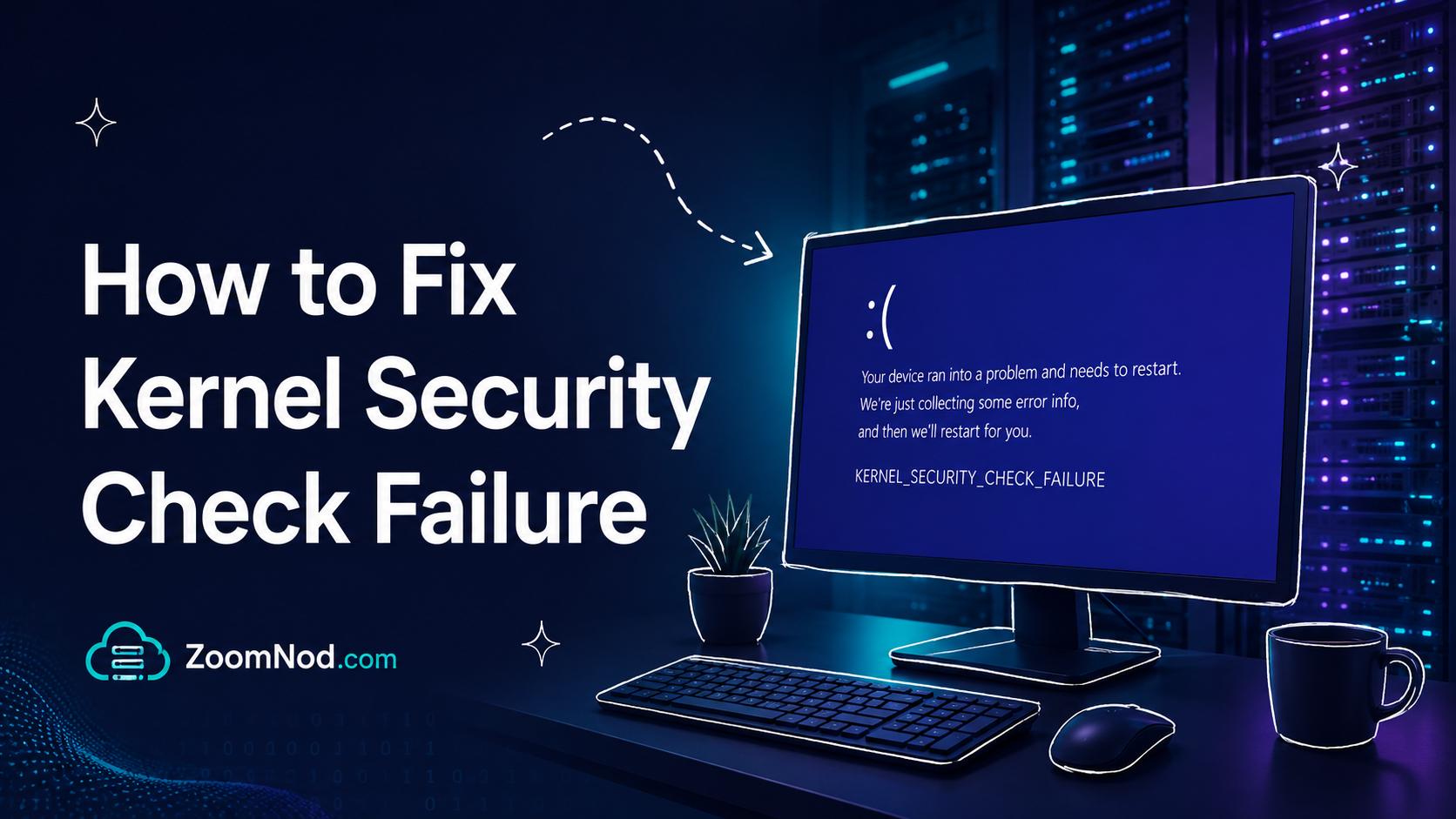
Kernel Security Check Failure is a Windows blue screen error that usually appears as the stop code KERNEL_SECURITY_CHECK_FAILURE. It can affect Windows 10, Windows 11, and Windows Server environments.
For most users, the error points to a driver issue, memory problem, corrupted system file, disk error, incompatible software, or recent update.
What Causes Kernel Security Check Failure?
- Outdated or corrupted drivers.
- Faulty RAM.
- Corrupted Windows system files.
- Disk errors.
- Recently installed software.
- Windows update conflicts.
- Overclocking or unstable hardware.
Before You Start
If the system still boots, back up important files before continuing. Blue screen troubleshooting may involve driver changes, disk checks, updates, and system repairs.
1. Restart and Check Recent Changes
Restart Windows first, then review what changed before the error appeared. A new driver, app, update, antivirus tool, or hardware device may have triggered it.
2. Update Windows
Go to Windows Update and install available updates. Microsoft often fixes stability and driver issues through updates.
3. Update or Roll Back Drivers
Open Device Manager and check display, chipset, storage, network, and peripheral drivers. If the problem started after a driver update, roll back the driver.
4. Run System File Checker
sfc /scannowThis scans and repairs corrupted Windows system files.
5. Run DISM
DISM /Online /Cleanup-Image /RestoreHealthDISM can repair the Windows image when SFC cannot complete the repair.
6. Check Disk Health
chkdsk C: /fDisk errors can cause blue screens, crashes, and corrupted files.
7. Test RAM
Use Windows Memory Diagnostic or a dedicated memory testing tool. Faulty RAM is a common reason for random blue screens.
8. Remove Problem Software
Uninstall recently added antivirus tools, VPNs, driver utilities, system optimizers, or low-level security software if the issue began after installation.
9. Use System Restore
If restore points are available, return Windows to a point before the error started.
10. Reset Windows as a Last Resort
If the earlier steps fail, consider Reset this PC. Back up your files before using this option.
Conclusion
Kernel Security Check Failure can often be resolved by updating or rolling back drivers, repairing system files, checking disk health, and testing RAM. Begin with low-risk checks, then move to deeper repairs if the error continues.
FAQs
What does Kernel Security Check Failure mean?
It means Windows detected corruption or an integrity problem in a critical kernel-level process or data structure.
Can bad RAM cause Kernel Security Check Failure?
Yes. Faulty or unstable RAM can cause this blue screen error.
Can drivers cause this error?
Yes. Outdated, corrupted, or incompatible drivers are one of the most common causes.
Latest Hosting Guides
VPS Hosting for Kubernetes: Complete Guide for 2026
Read guideVPS Hosting for Docker Containers: Complete Guide for 2026
Read guideVPS Hosting for Redis: Complete Guide for 2026
Read guideVPS Hosting for Elasticsearch: Complete Guide for 2026
Read guideHow to Host a Discord Bot on a VPS in 2026: Complete Step-by-Step Guide
Read guideSwipe or scroll to explore more guides